Creating a Course Using Interactive Learning in Auzmor Learn
Roles: Admins and users with permissions granted through Custom Roles.
Description: This article explains how to create a course using the Interactive Learning option in Auzmor Learn. Interactive Learning allows the creation of engaging digital learning content using interactive lessons, activities, assessments, videos, and widgets.
Benefits:
- Create interactive and engaging learning experiences
- Build structured courses using lessons, activities, and assessments
- Customize learning content with widgets and navigation elements
Overview: Interactive Learning provides a course authoring interface where course structure and content can be created using different lesson components and widgets.
Step-by-Step Guide
Step 1: Navigate to Training > Courses and click on the ‘+’ button.
Step 2: Hoover to "Interactive Learning" from the available course creation options
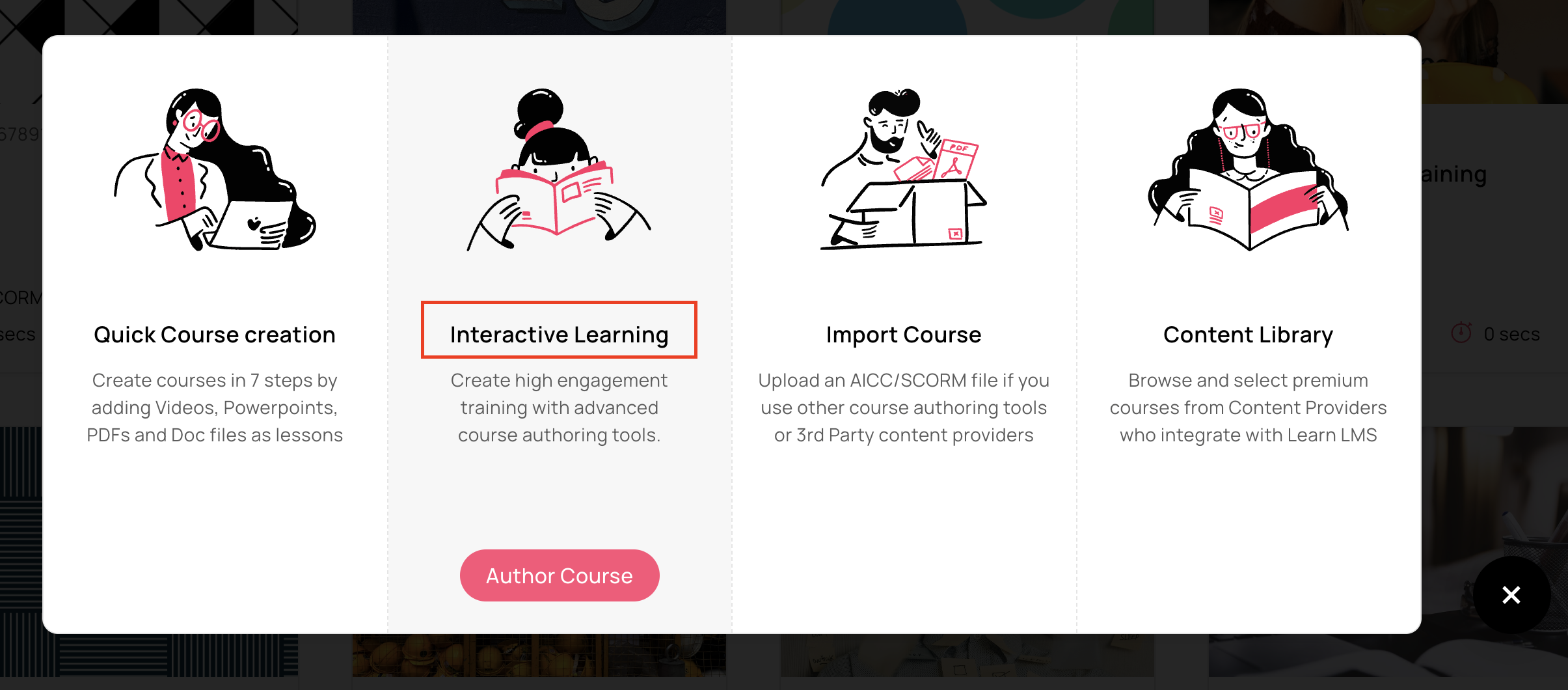
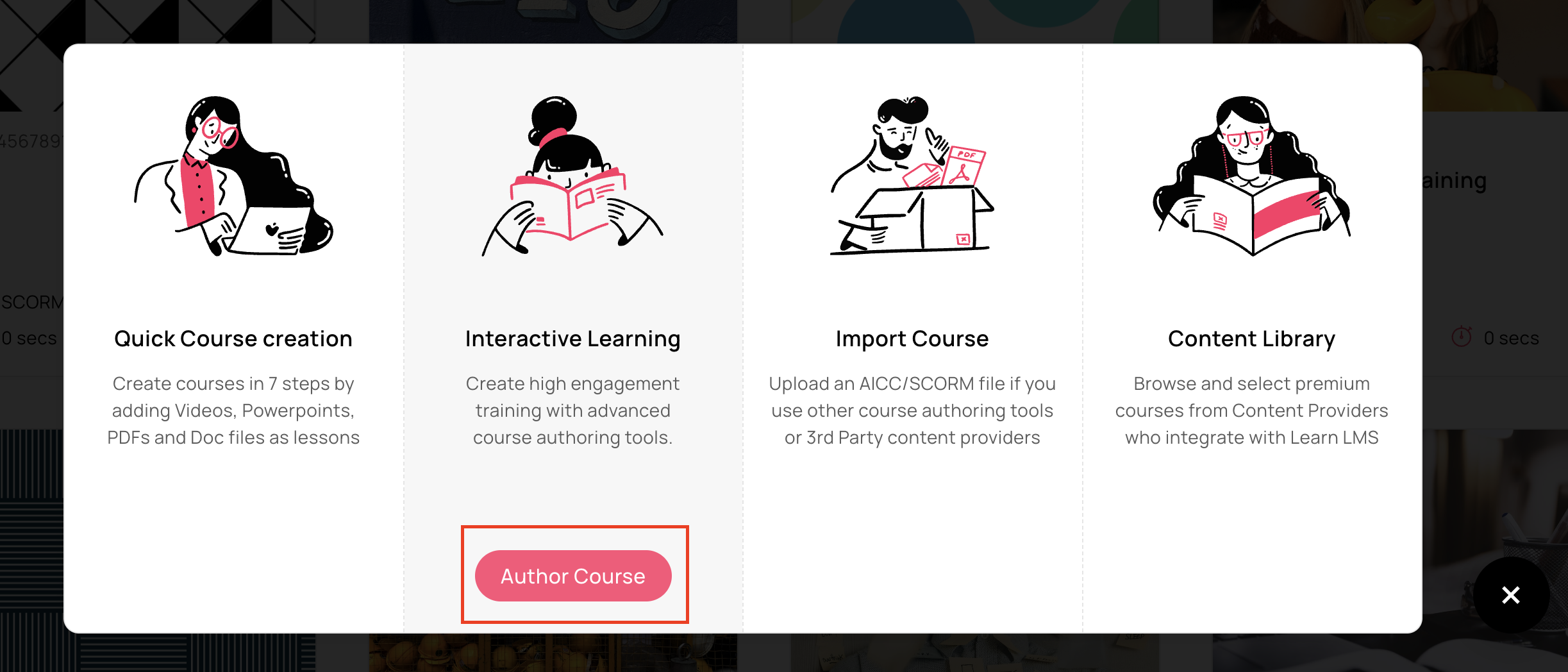
Step 3: Click on "Author Course" to start the course creation process.
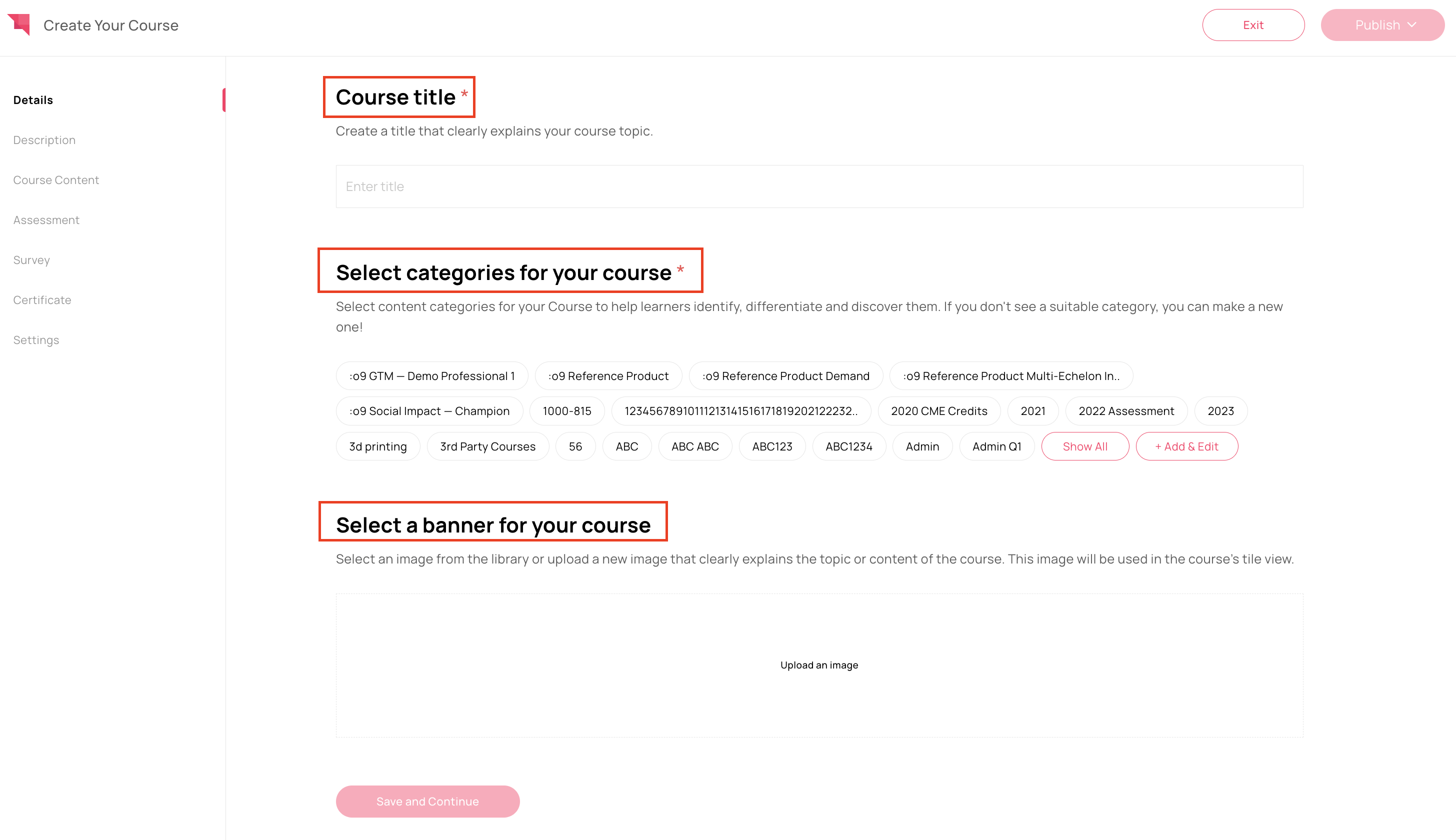
Step 4: Add the "course details" by entering the following information:
Course title
Categories
Course description
Course banner
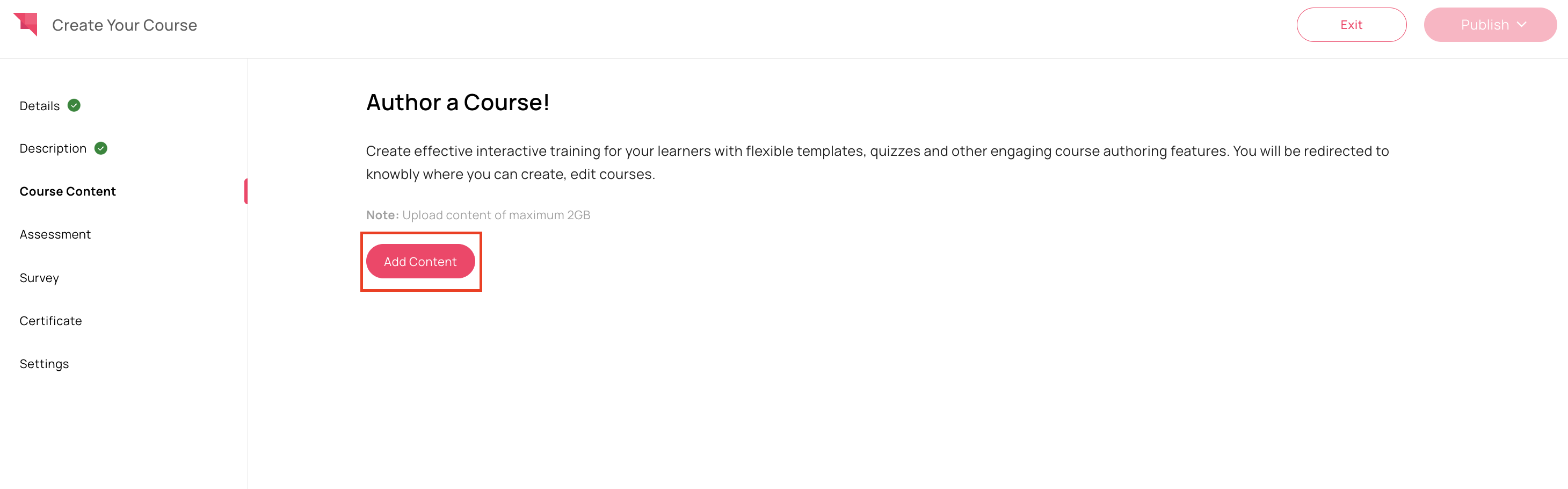
Step 5: Click on "Add Content" to open the Interactive Learning course builder.
Step 6: Define the "Structure of the course".
The course structure can be organized using lessons and different interactive components.
Step 7: "Add content" to the course using the available content options and widgets.
The following components can be added while creating the course:
- Lesson Cards
- Assessment Cards
- Activity Cards
- Tabs Widget
- Navigation Block
- Progress Block
- Attachment Block
Step 8: Continue building and customizing the course content as needed. Interactive Learning allows content customization using different layouts, widgets, blocks and learning activities.
Blocks:
- Image Block
- Video Block
- Navigation Blocks
- Embed Blocks
- Audio Blocks
- Table Blocks
Widgets:
- Hotspot Widget
- Gallery Widget
- Accordion Widget
- Matching Widget
- Tabs Widget
- Fill in the blank Widget
- True/ False Widget
- Short Answer Widget
Step 9: Once the course content is finalized, you can preview the course and then "click on Publish" within the Interactive Learning builder.
Preview:
Publish:
Step 10: After publishing the interactive content, continue with the remaining LMS course setup steps if required.
This may include:
Adding assessments
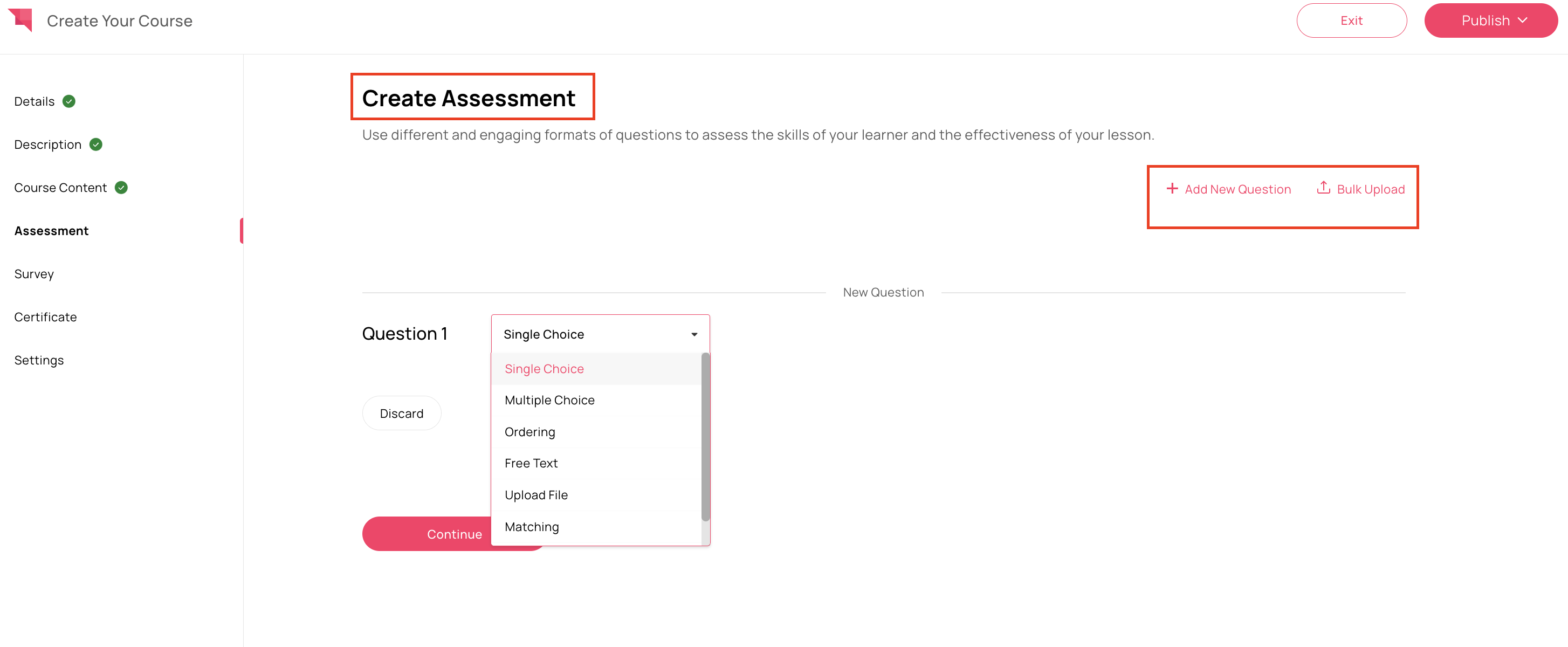
Completion certificate configuration
Course settings
Step 11: Click on "Publish" on the top-right corner to publish the course successfully.
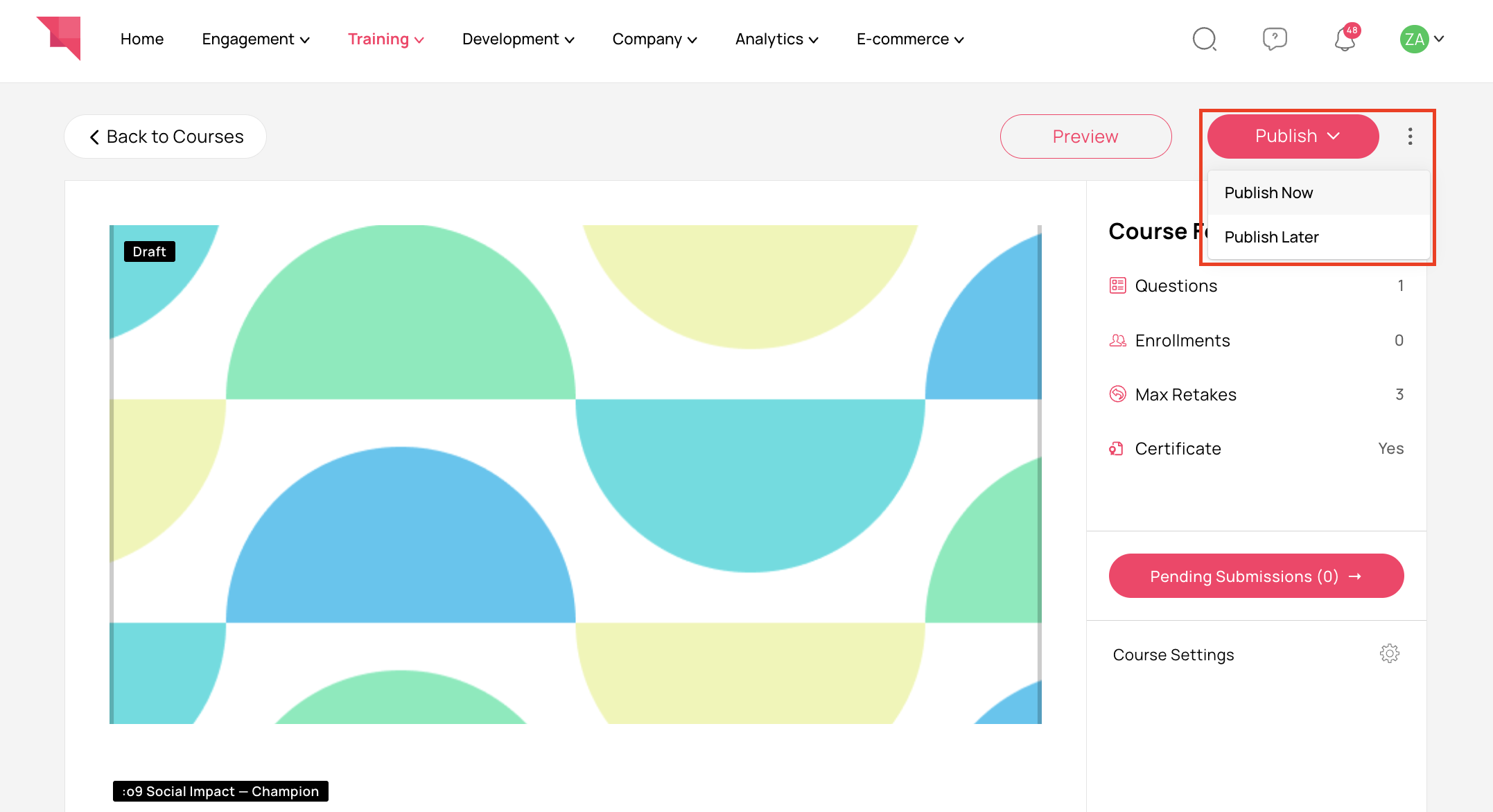
Note: Once published, Interactive Learning courses will appear under the Published tab in Courses. These courses can also be added to Learning Paths if required.